by Zachary Feb 26,2025
Troubleshooting the "Can't Connect to Host" Error in Ready or Not
One of the most frustrating experiences in Ready or Not is the inability to connect to games. While developers are working on a permanent solution, a definitive timeframe remains unclear. This guide provides solutions for resolving the persistent "Can't Connect to Host" error.
Understanding the Error
The "Can't Connect to Host" error typically indicates a problem preventing your connection to the game's servers. Several factors can contribute, including network issues, corrupted game files, version inconsistencies, and interfering background applications. Pinpointing the exact cause can be challenging, but the following solutions often prove effective.
Resolving the "Can't Connect to Host" Error
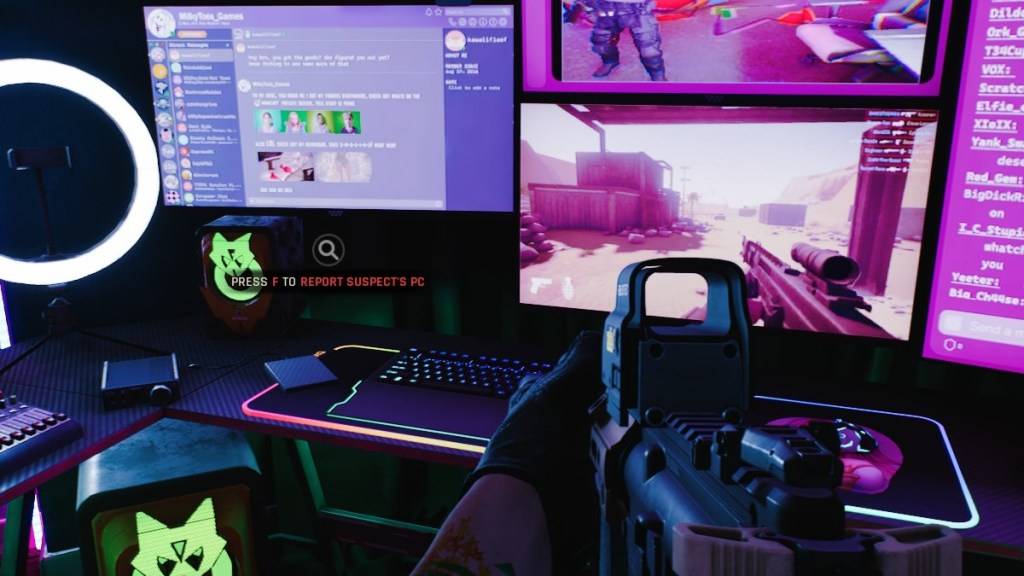
Here are several troubleshooting steps to try:
Restart the Game and Platform: A simple restart of Ready or Not and your game launcher (e.g., Steam) is often the quickest fix.
Verify Game Files: Corrupted or missing game files are a common culprit. Use your game launcher's built-in file verification tool (e.g., Steam's "Verify Integrity of Game Files" option found in the game's properties). This process checks for and replaces corrupted files.
Add Ready or Not to Firewall Exceptions: Although uncommon, Windows Firewall can sometimes interfere. Add Ready or Not to your firewall's allowed applications list. The specific steps vary depending on your operating system, but generally involve navigating to your firewall settings and adding the game's executable file.
Disable VPNs and Unnecessary Background Apps: VPNs, while sometimes beneficial for reducing ping, can also cause connection problems. Temporarily disable your VPN and close any unnecessary background applications that might be competing for network resources.
Adjust DirectX (DX) Mode: In rare instances, launch options might contribute to the error. If other solutions fail, try switching your DirectX mode in the game's settings.
Reinstall the Game: As a last resort, perform a clean reinstall. Uninstall the game through your launcher, manually delete any remaining game folders, and clear any related files from your Local AppData folder (%localappdata% in Windows).
Conclusion
The "Can't Connect to Host" error in Ready or Not is frustrating, but these steps should help resolve the issue in most cases. If problems persist, consider contacting Ready or Not's support for further assistance.
Ready or Not is available now for PC.
Girls Frontline 2: Exilium Global Website Goes Live, Along With Its Socials!
Marvel Rivals: Understanding Bussing and Catching It
New Game Plus in Assassin's Creed Shadows: Confirmed?
Top Skills to Prioritize for Yasuke in Assassin’s Creed Shadows
Assassin’s Creed Shadows Movements Reviewed by Two Parkour Athletes
Death Stranding 2 Release Date Unveiled in Massive Trailer
Pokemon GO Leak Teases New Adventure Effects
Amazon Music Unlimited: Free 3-Month Trial Available
Little Robot Mod
Download
Charades and other party games - Lexis Pexis
Download
Brain Boom - Tricky Puzzles game, IQ Challenge
Download
Rezident slot safes
Download
Poker Mania
Download
EA Sports FC Mobile 25 (FIFA Fútbol)
Download
MainCraft: build & mine blocks
Download
Red Cherry Slot Machine
Download
Hex Kingdom
Download
Netflix will soon offer interactive party games you and your friends can play via mobile
Apr 27,2026

Marvel Contest Semi-Finalists Revealed for Battlerealm Brawl
Apr 25,2026

Endless Grades: Pixel Saga – The Best Tips & Tricks To Boost Your Progression
Apr 22,2026
Foretales: Card Game Shapes Apocalyptic Fate
Apr 20,2026
Once Human: Best Builds for PvE and PvP
Apr 17,2026
 Category