by Bella Mar 16,2025
Fortnite can be a chaotic experience, especially when hampered by poor framerates. Fortunately, many performance issues are easily resolved by adjusting in-game settings. This guide outlines the optimal PC settings for a smoother, more enjoyable Fortnite experience.
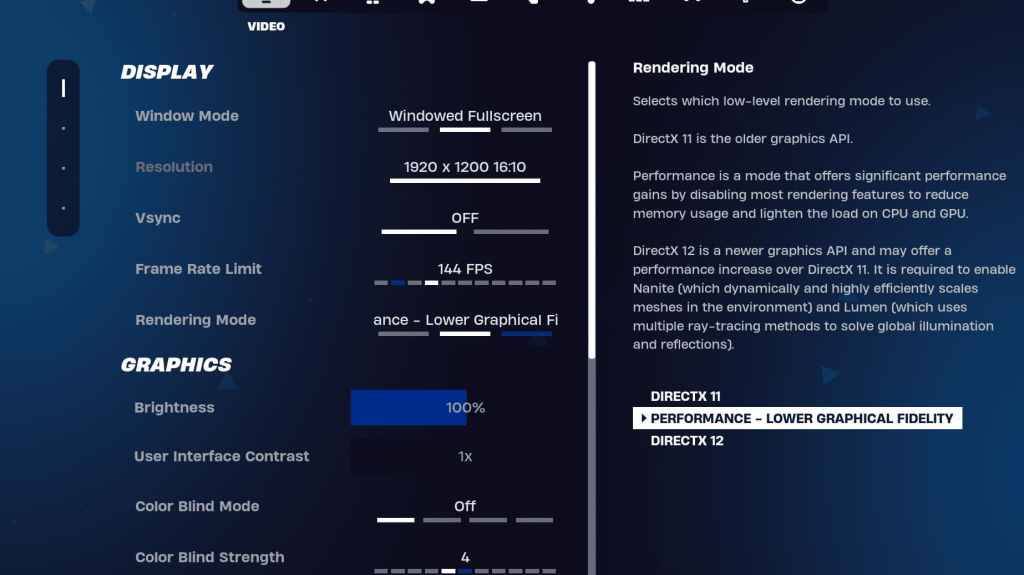
Fortnite's Video settings are divided into Display and Graphics subsections. Optimizing both is crucial for performance. Here are the recommended Display settings:
| Setting | Recommended |
| Window Mode | Fullscreen (best performance); Windowed Fullscreen (for frequent tabbing) |
| Resolution | Native monitor resolution (e.g., 1920x1080). Reduce for low-end PCs. |
| V-sync | Off (prevents input lag) |
| Framerate Limit | Monitor Refresh Rate (e.g., 144Hz, 240Hz) |
| Rendering Mode | Performance (maximizes FPS) |
Fortnite offers three rendering modes: Performance, DirectX 11, and DirectX 12. DirectX 11 is older, stable, and the default; DirectX 12 offers potential performance gains on newer systems with enhanced graphics options. However, for pure performance and minimal input lag, Performance mode is the preferred choice—the professional players' secret weapon.
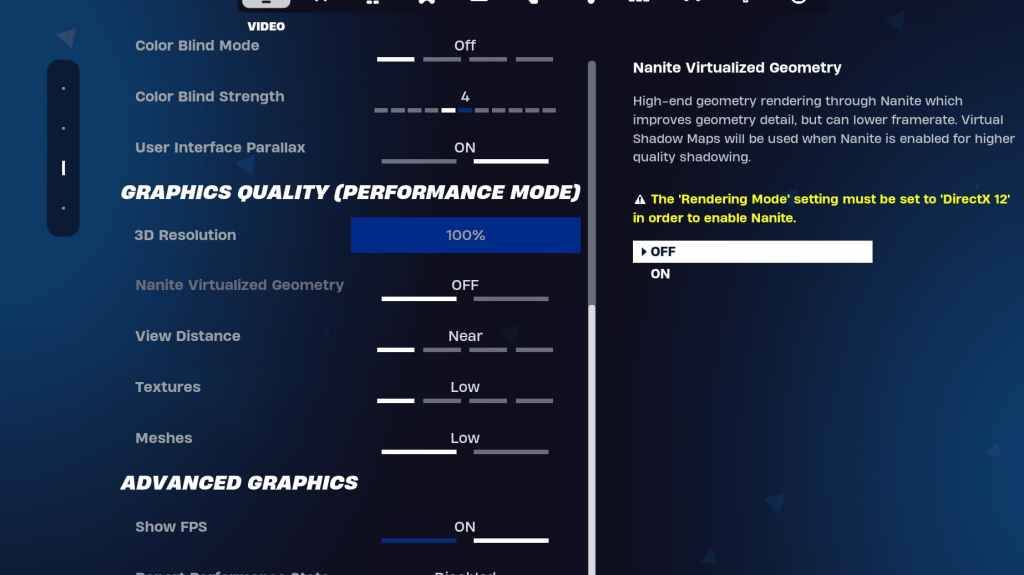
The Graphics settings significantly impact FPS. Configure these to minimize resource usage and maximize frame rates:
| **Setting** | **Recommended** |
| Quality Preset | Low |
| Anti-Aliasing and Super Resolution | Off |
| 3D Resolution | 100% (70-80% for low-end PCs) |
| Nanite Virtual Geometry (DX12 only) | Off |
| Shadows | Off |
| Global Illumination | Off |
| Reflections | Off |
| View Distance | Epic |
| Textures | Low |
| Effects | Low |
| Post Processing | Low |
| Hardware Ray Tracing | Off |
| Nvidia Low Latency Mode (Nvidia GPUs only) | On+Boost |
| Show FPS | On |
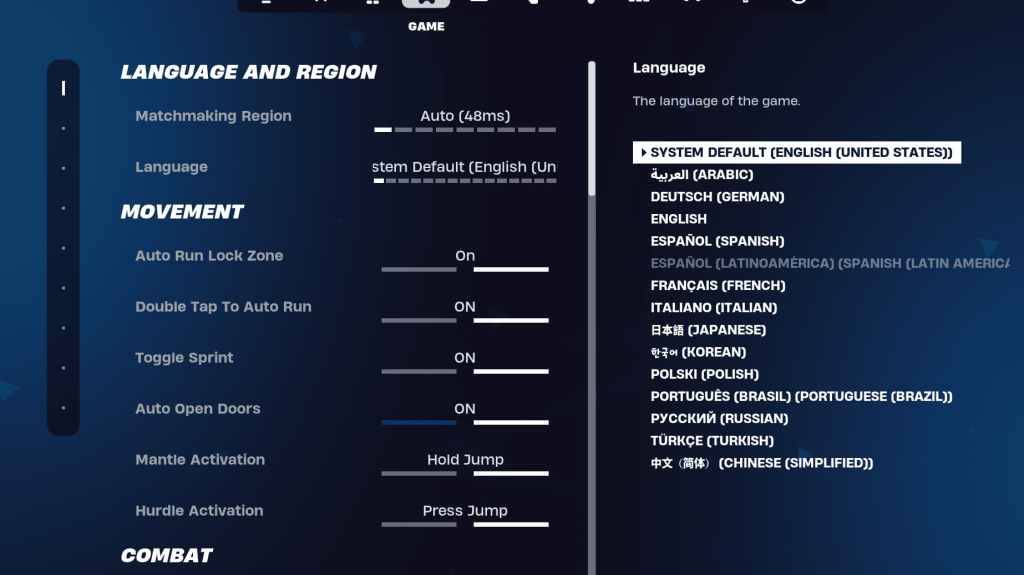
The Game settings don't affect FPS but are crucial for gameplay. While many are subjective, some are essential:
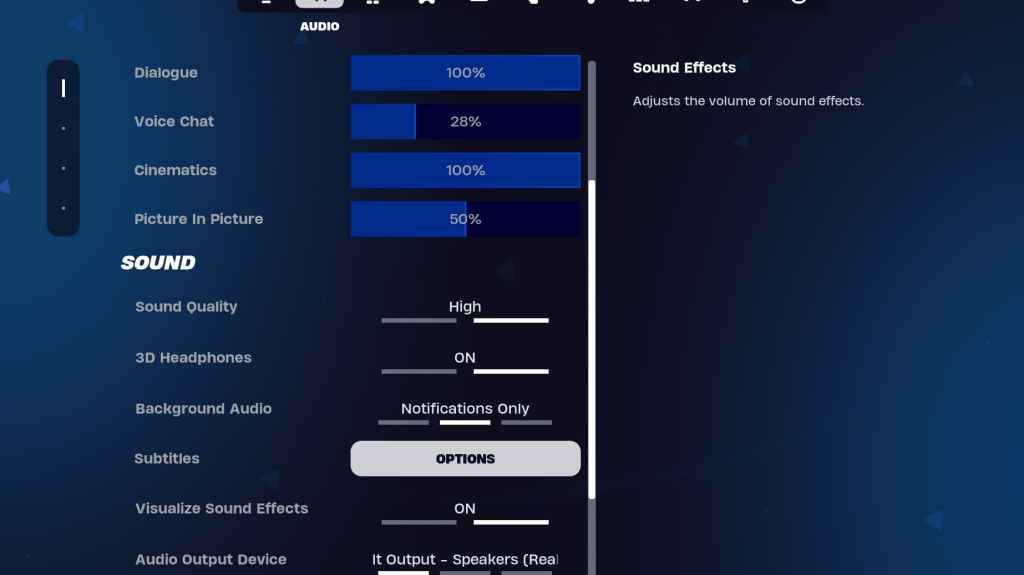
Clear audio is vital in Fortnite. Enable both 3D Headphones (Fortnite's spatial audio) and Visualize Sound Effects for enhanced directional hearing and visual audio cues. Experiment with 3D Headphones as compatibility varies.
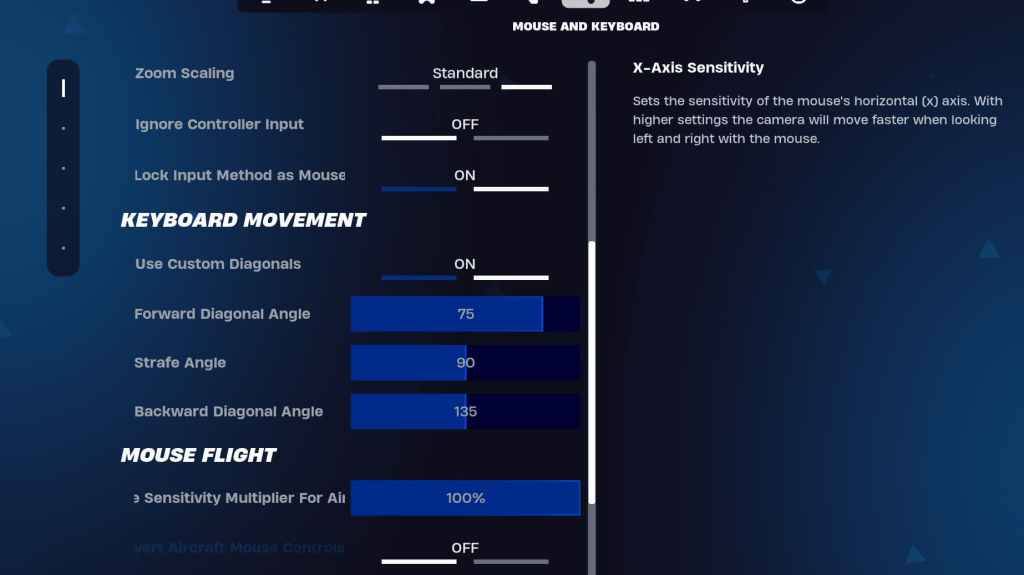
Configure sensitivity and keybinds in the Keyboard and Mouse and Keyboard Controls tabs. Adjust X/Y Sensitivity, Targeting Sensitivity (45-60%), Scope Sensitivity (45-60%), and Building/Editing Sensitivity to personal preference. For keyboard movement, consider:
Experiment with keybinds to find what suits your playstyle.
These settings provide a strong foundation for optimized Fortnite gameplay. Remember to adjust settings based on your hardware and personal preferences. Fortnite is available on various platforms, including Meta Quest 2 and 3.
Girls Frontline 2: Exilium Global Website Goes Live, Along With Its Socials!
Marvel Rivals: Understanding Bussing and Catching It
New Game Plus in Assassin's Creed Shadows: Confirmed?
Top Skills to Prioritize for Yasuke in Assassin’s Creed Shadows
Assassin’s Creed Shadows Movements Reviewed by Two Parkour Athletes
Death Stranding 2 Release Date Unveiled in Massive Trailer
Pokemon GO Leak Teases New Adventure Effects
Amazon Music Unlimited: Free 3-Month Trial Available

Once Human: Best Builds for PvE and PvP
Apr 17,2026
Galaxy Defense Fortress TD: Dominate with Strategy
Apr 16,2026
Bandai Namco Remasters Another Tales Game, Likely Xillia
Apr 14,2026

Ahsoka Revealed at Star Wars Celebration
Apr 09,2026
Netflix and PBS to Stream New Sesame Street Episodes After HBO Max Deal Ends
Apr 07,2026
 Category