by Chloe Mar 21,2025
Motion sickness can quickly turn a fun gaming session into a nauseating ordeal. If you've started playing *Avowed* and are feeling queasy, don't worry—we've got you covered. Here's how to tweak the settings to minimize that unpleasant sensation.
Recommended Videos Jump To:
--------
The Best Settings to Reduce Motion Sickness in Avowed
How to Remove Head Movement and Camera Shake
How to Fix the Field of View and Motion Blur
What If You’re Still Feeling Motion Sick?
The Best Settings to Reduce Motion Sickness in Avowed
-----------------------------------------------------
In most first-person games, motion sickness often stems from head movement, field of view, and motion blur. *Avowed* is no exception. Let's tackle these settings one by one.
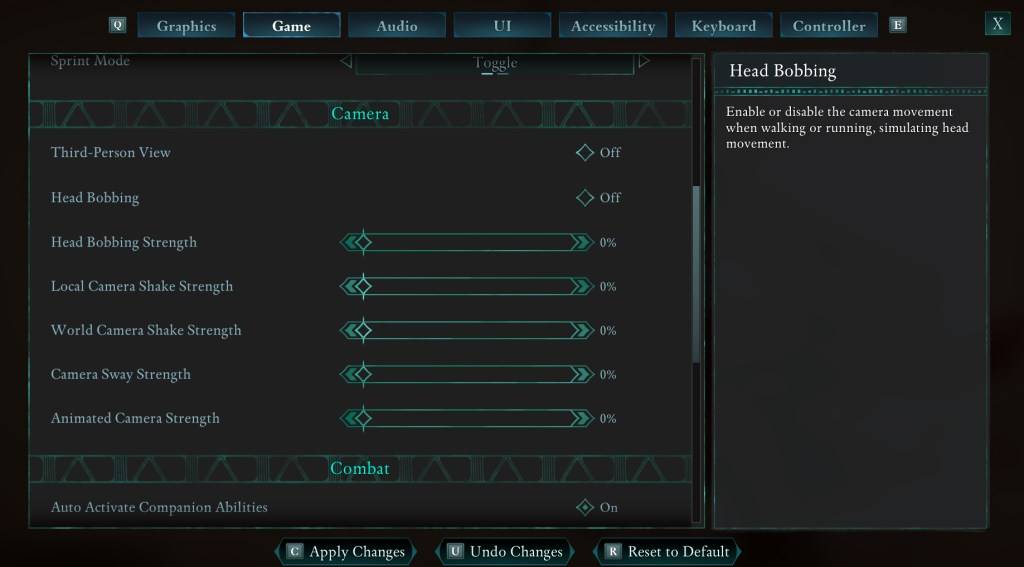
Disabling head movement and camera shake is often the most effective first step. Navigate to Settings, then the "Game" tab. Locate the "Camera" section and adjust these options:
These adjustments should significantly reduce motion sickness for most players. Experiment with slight adjustments to find the optimal balance between immersion and comfort.
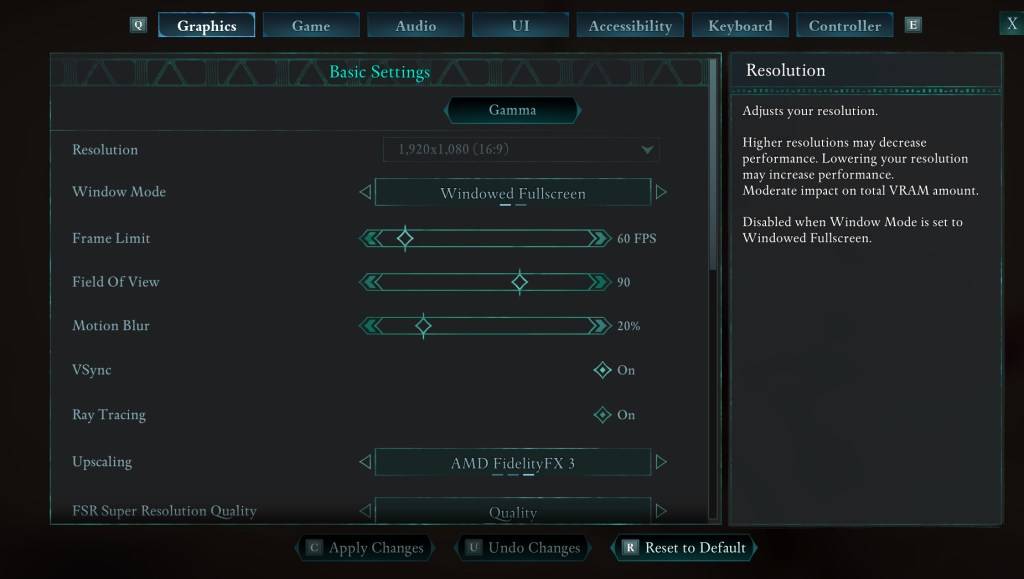
If eliminating head bobbing and camera shake isn't enough, head to the "Graphics" tab in Settings. You'll find "Field of View" and "Motion Blur" sliders near the top. Try these:
If motion sickness persists, continue experimenting with the settings mentioned above. Consider switching between first-person and third-person view as needed. If all else fails, remember to take breaks, drink water, and try again later. Pushing through extreme discomfort isn't worth it.
These settings should help you enjoy *Avowed* without the nausea. Happy gaming!
*Avowed is available now.*
Girls Frontline 2: Exilium Global Website Goes Live, Along With Its Socials!
Marvel Rivals: Understanding Bussing and Catching It
New Game Plus in Assassin's Creed Shadows: Confirmed?
Top Skills to Prioritize for Yasuke in Assassin’s Creed Shadows
Assassin’s Creed Shadows Movements Reviewed by Two Parkour Athletes
Death Stranding 2 Release Date Unveiled in Massive Trailer
Pokemon GO Leak Teases New Adventure Effects
Amazon Music Unlimited: Free 3-Month Trial Available
Ahsoka Revealed at Star Wars Celebration
Apr 09,2026
Netflix and PBS to Stream New Sesame Street Episodes After HBO Max Deal Ends
Apr 07,2026
Eternity's Bastion Season 2 Debuts Post-EVA 2025 Triumph
Apr 02,2026
Alien RPG: Idle Space Farm Guide
Apr 02,2026
GOG unveils one-click mods, Skyblivion arrives this year
Mar 30,2026
 Category