by Stella Apr 09,2025
*Splitgate 2* is one of the most eagerly awaited games of 2025. Fans are thrilled to dive into the sequel of this popular title. However, as *Splitgate 2* is still in its Alpha phase, players should expect some performance hiccups like crashes and frame drops. Fortunately, optimizing your settings can help mitigate these issues. Here are the best settings for *Splitgate 2* to achieve a high framerate and minimize input lag.
Related: What Is Splitgate 2's Release Date?
Before diving into optimization, ensure your system meets the game's requirements. *Splitgate 2* is designed to be accessible, boasting modest system specifications.
Minimum
Recommended:
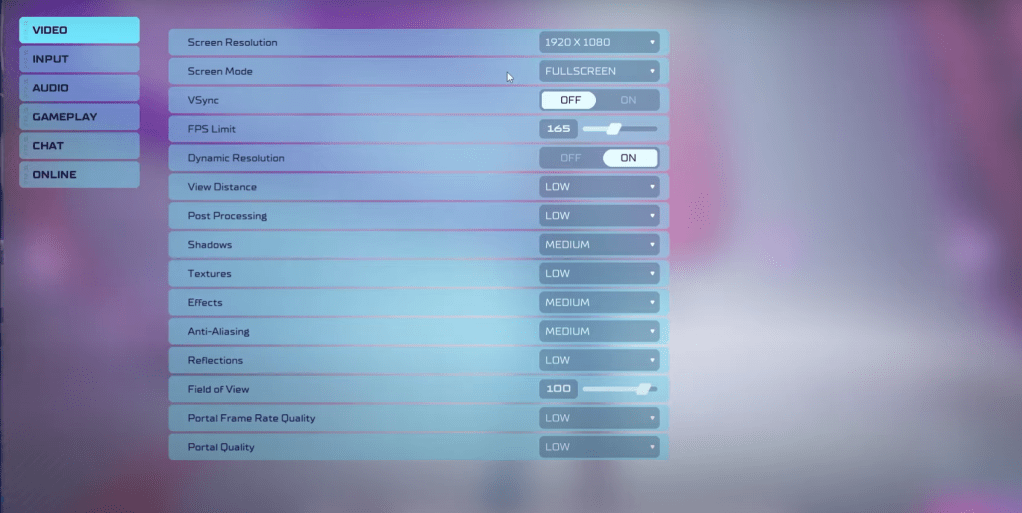 As a competitive multiplayer shooter, *Splitgate 2* prioritizes performance over visual quality. Here are the recommended settings to optimize your gameplay experience:
In summary, most settings should be set to their lowest option to maximize performance. If the visual quality is too compromised, consider increasing Effects and Anti-aliasing, as these have a minimal impact on performance.
The Field of View (FOV) setting is particularly crucial in *Splitgate 2*. While a higher FOV provides more visibility, which is essential in competitive shooters, it can also cause frame rate issues. A slight reduction in FOV can significantly boost performance without greatly affecting gameplay.
While these settings don't directly boost FPS, they can enhance your overall gaming experience. Adjust your sensitivity settings to your preference or use an online calculator to convert settings from other shooters you play.
For audio, consider lowering the in-game music to reduce distractions. Enabling Spatial Sound in Windows settings can also improve the accuracy of audio cues, helping you locate sounds more precisely.
That's all for the best settings to optimize your experience in *Splitgate 2*.
Related: 10 of the Most Fun Games to Play With Friends
Girls Frontline 2: Exilium Global Website Goes Live, Along With Its Socials!
Marvel Rivals: Understanding Bussing and Catching It
New Game Plus in Assassin's Creed Shadows: Confirmed?
Top Skills to Prioritize for Yasuke in Assassin’s Creed Shadows
Assassin’s Creed Shadows Movements Reviewed by Two Parkour Athletes
Death Stranding 2 Release Date Unveiled in Massive Trailer
Pokemon GO Leak Teases New Adventure Effects
Amazon Music Unlimited: Free 3-Month Trial Available
Eternity's Bastion Season 2 Debuts Post-EVA 2025 Triumph
Apr 02,2026
Alien RPG: Idle Space Farm Guide
Apr 02,2026
GOG unveils one-click mods, Skyblivion arrives this year
Mar 30,2026
The Darkside Detective Is This Week’s Free Mobile Game on the Epic Games Store
Mar 29,2026

Randy Pitchford Defends Borderlands 4 Comment in Statement
Mar 28,2026
 Category