by Lily Feb 26,2025
Troubleshooting Grainy and Blurry Graphics in Call of Duty: Black Ops 6
Call of Duty fans expect top-tier visuals. However, Black Ops 6 can sometimes fall short, impacting gameplay and immersion. This guide addresses grainy and blurry visuals, offering solutions to enhance your gaming experience.
Why the Grain and Blur?
If your Black Ops 6 visuals are subpar despite optimal hardware settings, in-game settings are the likely culprit. Updates can sometimes reset options to defaults. The key settings are within the Graphics menu's Display, Quality, and View tabs. The Quality tab holds the most crucial adjustments.
Disabling Blur Effects
Many games use Motion Blur and Depth of Field for cinematic effects. However, in fast-paced games like Black Ops 6, this added blur hinders target acquisition.
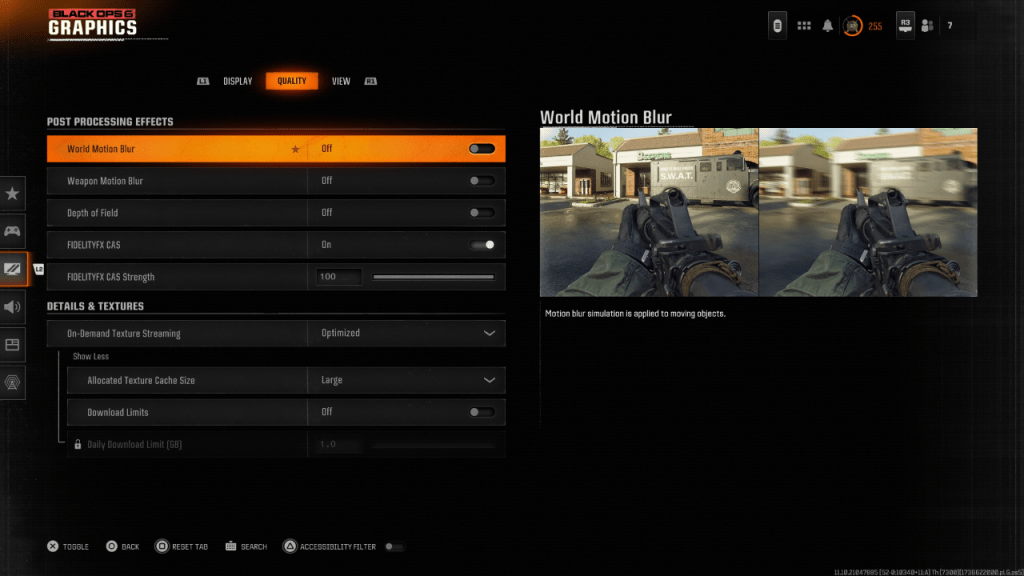
To disable these:
Improving Clarity and Reducing Grain
Even after disabling blur, image quality might still be problematic. Incorrect gamma and brightness settings are often to blame.
If issues persist, On-Demand Texture Streaming might be the cause.
Optimizing Textures and Details
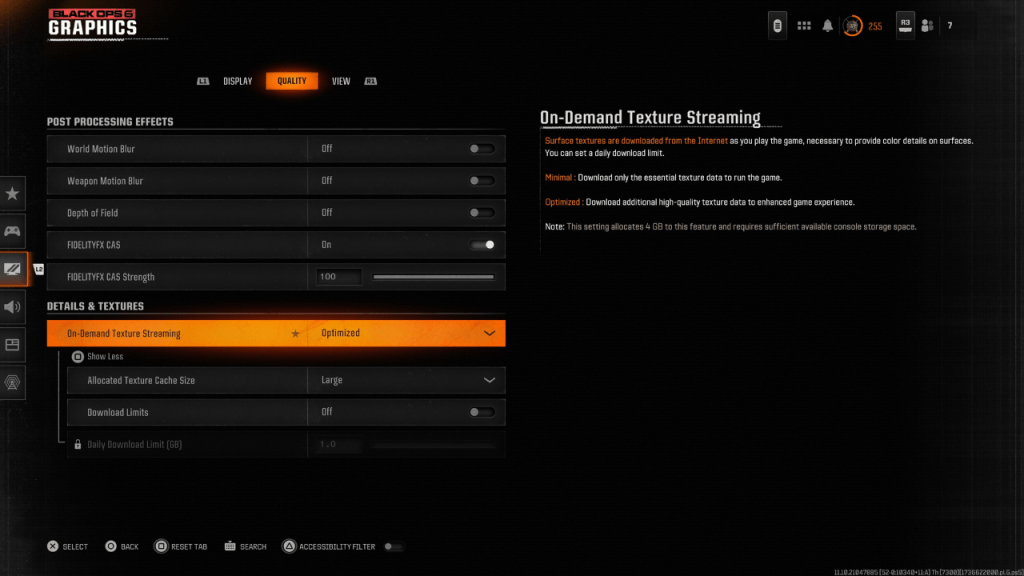
On-Demand Texture Streaming downloads textures as you play, saving storage space but potentially reducing image quality.
By adjusting these settings, you should significantly improve the visual clarity and reduce graininess in Call of Duty: Black Ops 6.
Girls Frontline 2: Exilium Global Website Goes Live, Along With Its Socials!
Marvel Rivals: Understanding Bussing and Catching It
New Game Plus in Assassin's Creed Shadows: Confirmed?
Top Skills to Prioritize for Yasuke in Assassin’s Creed Shadows
Assassin’s Creed Shadows Movements Reviewed by Two Parkour Athletes
Death Stranding 2 Release Date Unveiled in Massive Trailer
Pokemon GO Leak Teases New Adventure Effects
Amazon Music Unlimited: Free 3-Month Trial Available
Little Robot Mod
Download
Charades and other party games - Lexis Pexis
Download
Brain Boom - Tricky Puzzles game, IQ Challenge
Download
Rezident slot safes
Download
Poker Mania
Download
EA Sports FC Mobile 25 (FIFA Fútbol)
Download
MainCraft: build & mine blocks
Download
Red Cherry Slot Machine
Download
Hex Kingdom
Download
Netflix will soon offer interactive party games you and your friends can play via mobile
Apr 27,2026
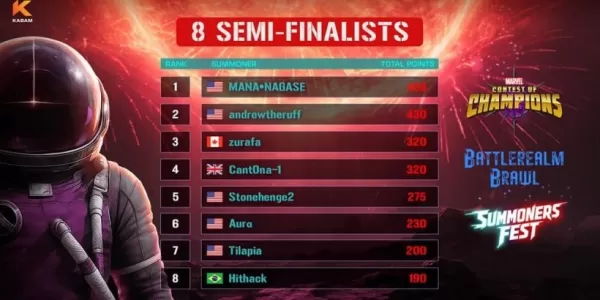
Marvel Contest Semi-Finalists Revealed for Battlerealm Brawl
Apr 25,2026
Endless Grades: Pixel Saga – The Best Tips & Tricks To Boost Your Progression
Apr 22,2026
Foretales: Card Game Shapes Apocalyptic Fate
Apr 20,2026
Once Human: Best Builds for PvE and PvP
Apr 17,2026
 Category