
by Hannah Feb 20,2025
This guide explains how to enable and use SSH on your Steam Deck for remote access to your files. The Steam Deck's desktop mode allows for more than just gaming, and SSH provides a secure method for remote file access.
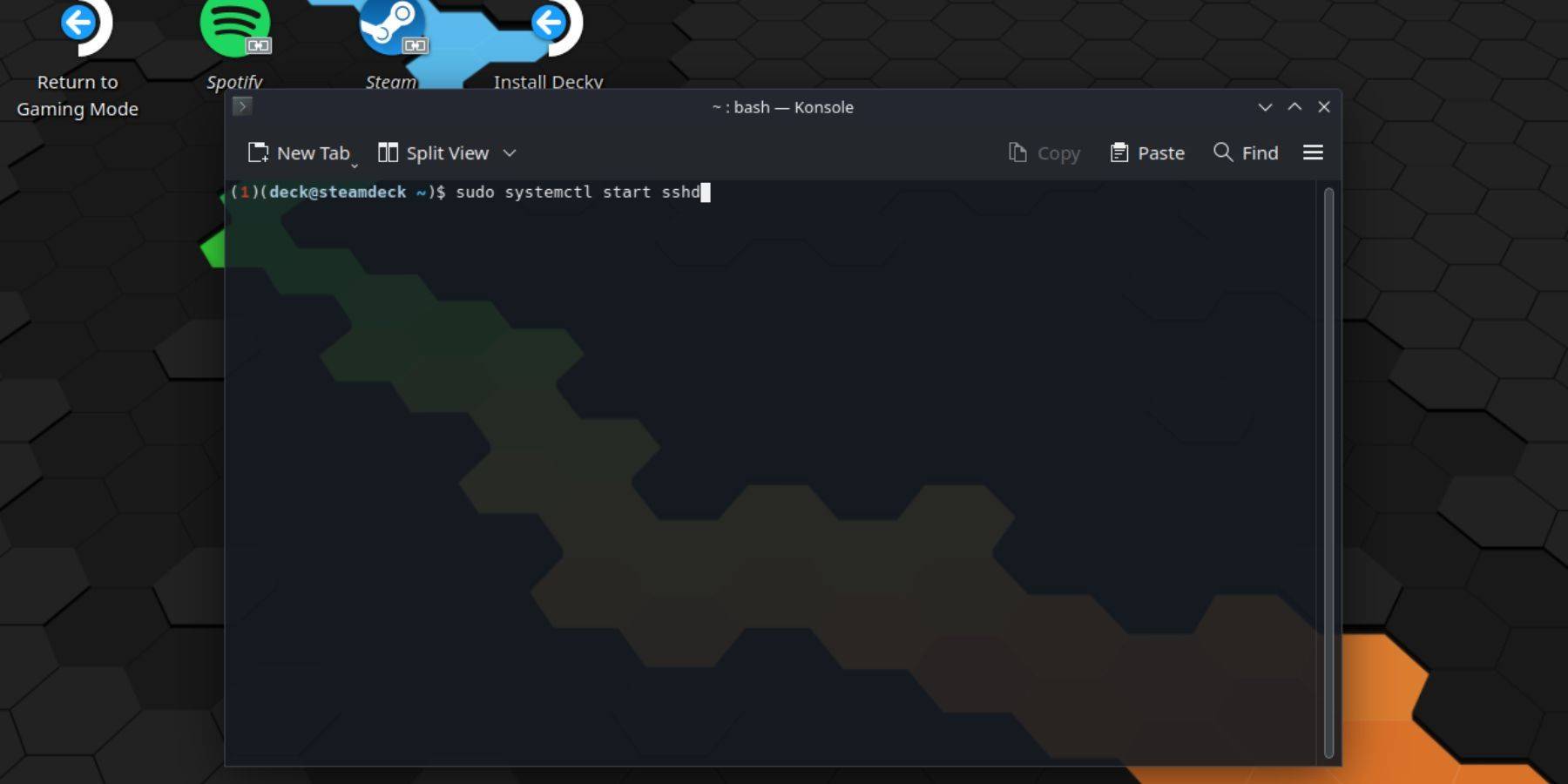 Follow these steps to enable SSH:
Settings > System > System Settings > Enable Developer Mode.Power > Switch to Desktop Mode.passwd.sudo systemctl start sshd.sudo systemctl enable sshd.Important: Avoid modifying or deleting system files to prevent OS corruption.
To disable SSH:
sudo systemctl disable sshd to prevent SSH from starting automatically after a reboot.sudo systemctl stop sshd to immediately stop the SSH service. After enabling SSH, you can use a third-party application like Warpinator for easy file transfer. Install Warpinator on both your Steam Deck and your PC, then launch it on both devices for seamless file sharing.
Alternatively, if you're using a Linux PC, you can use your file manager. Enter sftp://deck@steamdeck in the address bar and provide the password you set earlier.

Girls Frontline 2: Exilium Global Website Goes Live, Along With Its Socials!
Marvel Rivals: Understanding Bussing and Catching It
New Game Plus in Assassin's Creed Shadows: Confirmed?
Top Skills to Prioritize for Yasuke in Assassin’s Creed Shadows
Assassin’s Creed Shadows Movements Reviewed by Two Parkour Athletes
Death Stranding 2 Release Date Unveiled in Massive Trailer
Pokemon GO Leak Teases New Adventure Effects
Amazon Music Unlimited: Free 3-Month Trial Available
Capcom Teases Resident Evil 9 Celebrating RE4 Sales
Apr 30,2026

Baki the Grappler Joins Two Strikes on Crunchyroll Game Vault
Apr 30,2026
Gaming Monitors Impress at Computex 2025
Apr 29,2026

Netflix will soon offer interactive party games you and your friends can play via mobile
Apr 27,2026

Marvel Contest Semi-Finalists Revealed for Battlerealm Brawl
Apr 25,2026
 Category