by Eric Apr 12,2025
If you've been eagerly waiting to connect your PlayStation VR2 headset to a gaming PC and explore the vast world of SteamVR games, you're in for a treat. Sony has released a $60 adapter that allows PS VR2 owners to use their headset with any modern gaming PC that meets the necessary specifications. However, connecting your PS VR2 to a PC isn't as straightforward as just plugging in the adapter. Despite being touted as a plug-and-play device, you might encounter some challenges and additional setup steps depending on your PC's configuration.
Before you embark on the setup journey, ensure you have all the required components. The PS VR2, when connected via the adapter, is compatible with most SteamVR games. You'll need a PC with Bluetooth 4.0 capability, a DisplayPort 1.4 cable, a nearby AC power outlet, and both the PlayStation VR2 and SteamVR apps installed on Steam. Remember, the Sense controllers that come with the PS VR2 charge via USB-C, so you'll need two USB-C ports and cables or opt for Sony's $50 Sense controller charging station for a more convenient solution.
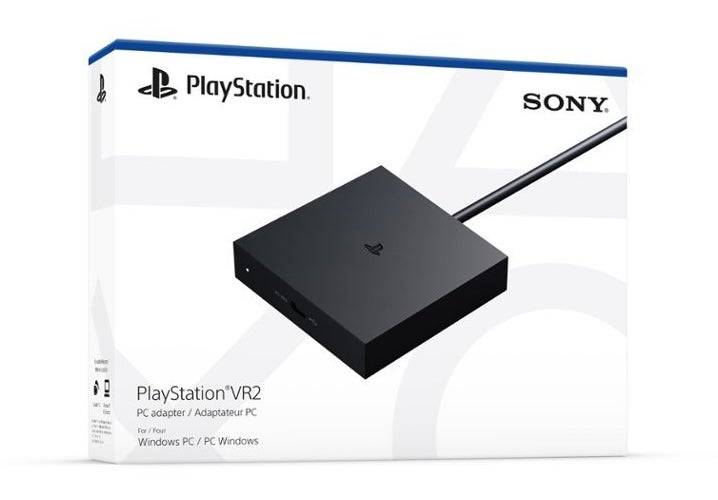
Back in Stock
7See it at Amazon
First, check if your gaming PC is compatible with the PlayStation VR2 headset by visiting Sony's official PS VR2 PC Adapter preparation page. Once confirmed, gather these essentials:
With all the necessary components ready, follow these steps to connect your PS VR2 to your PC:
Once everything is set up, you're ready to dive into the exciting world of SteamVR games!
Currently, connecting the PS VR2 to a PC without the adapter is not officially supported. However, some users have reported success using GPUs with VirtualLink from around 2018, which feature a USB-C port. These GPUs might allow a direct connection to the PS VR2 if the PlayStation VR2 app is installed, effectively bypassing the need for the adapter. For the most reliable experience, though, using the official adapter is recommended.
Girls Frontline 2: Exilium Global Website Goes Live, Along With Its Socials!
Marvel Rivals: Understanding Bussing and Catching It
New Game Plus in Assassin's Creed Shadows: Confirmed?
Top Skills to Prioritize for Yasuke in Assassin’s Creed Shadows
Assassin’s Creed Shadows Movements Reviewed by Two Parkour Athletes
Death Stranding 2 Release Date Unveiled in Massive Trailer
Pokemon GO Leak Teases New Adventure Effects
Amazon Music Unlimited: Free 3-Month Trial Available
Eternity's Bastion Season 2 Debuts Post-EVA 2025 Triumph
Apr 02,2026
Alien RPG: Idle Space Farm Guide
Apr 02,2026
GOG unveils one-click mods, Skyblivion arrives this year
Mar 30,2026
The Darkside Detective Is This Week’s Free Mobile Game on the Epic Games Store
Mar 29,2026

Randy Pitchford Defends Borderlands 4 Comment in Statement
Mar 28,2026
 Category