by Blake Apr 27,2025
Even after all these years, Minecraft remains a leader among sandbox games, captivating players with endless journeys, dynamic world generation, and robust multiplayer capabilities. Its vast landscape offers limitless creative possibilities. Let's dive into the essential first steps to begin your Minecraft adventure.
To embark on your Minecraft journey, you'll first need to create a Microsoft account. Head over to the official Minecraft website using your preferred browser. Locate the "Sign In" button in the top right corner and click it. A new window will prompt you to create an account.
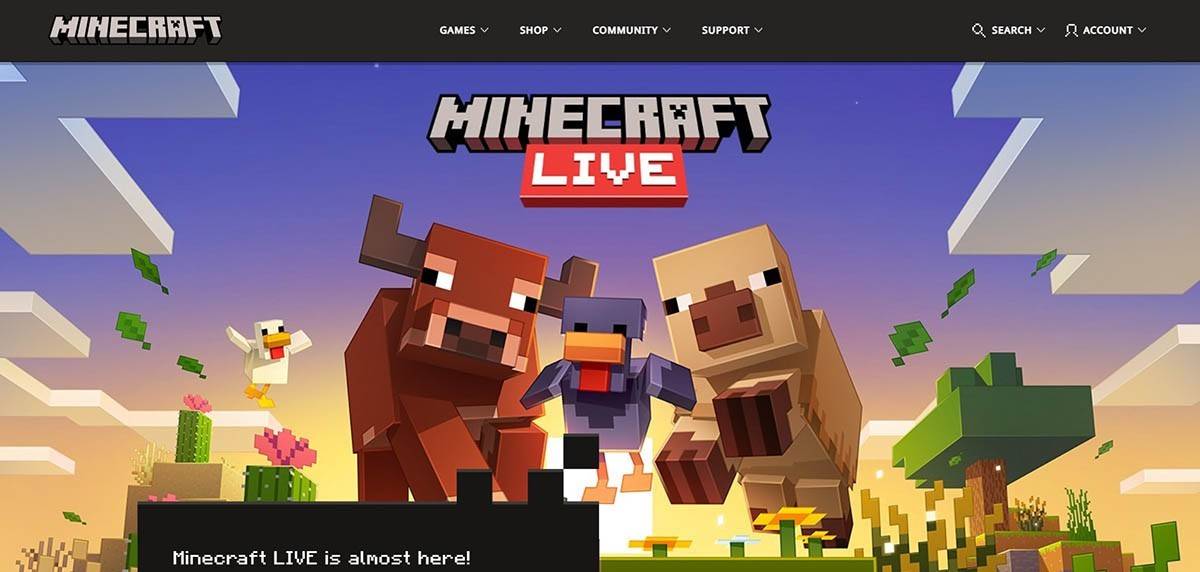 Image: minecraft.net
Enter your email address and create a strong password for your Minecraft account. Choose a unique username; if it's already taken, the system will help you find an alternative.
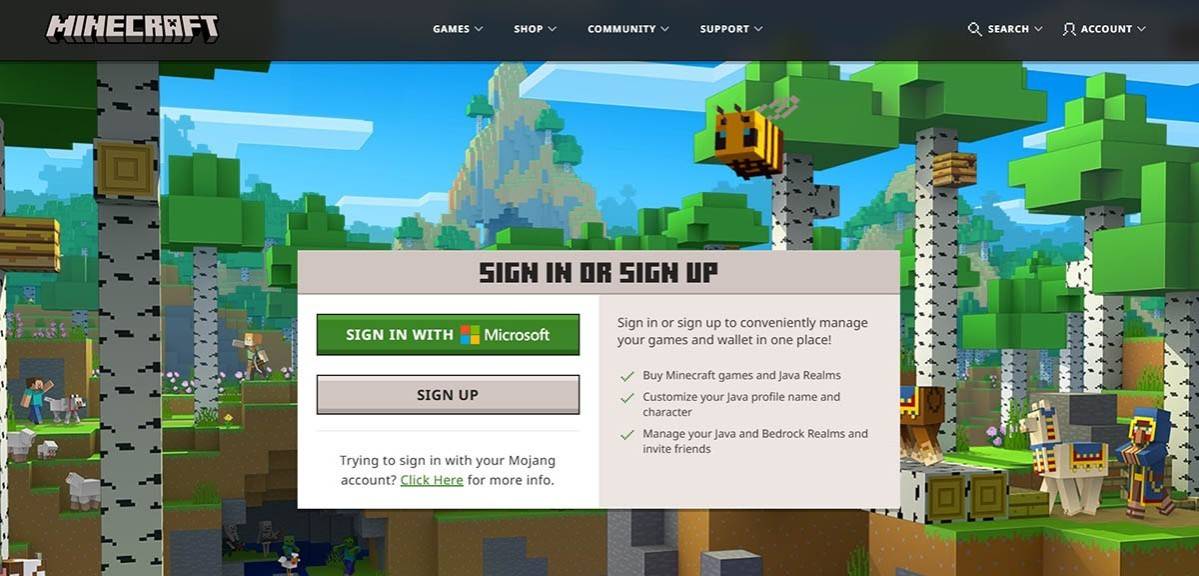 Image: minecraft.net
After setting up your account, verify your email address by entering the confirmation code sent to your inbox. If the email doesn't arrive promptly, check your "Spam" folder. Once verified, your profile will be linked to your Microsoft account, allowing you to purchase the game if you haven't already. Navigate to the store on the website, select your desired version of the game, and follow the instructions to complete the purchase.
Minecraft on PC offers two main versions: Java Edition and Bedrock Edition. Java Edition is compatible with Windows, macOS, and Linux and can be downloaded from the official Minecraft website. Once the launcher is installed, log in with your Microsoft or Mojang account and choose the game version you wish to play.
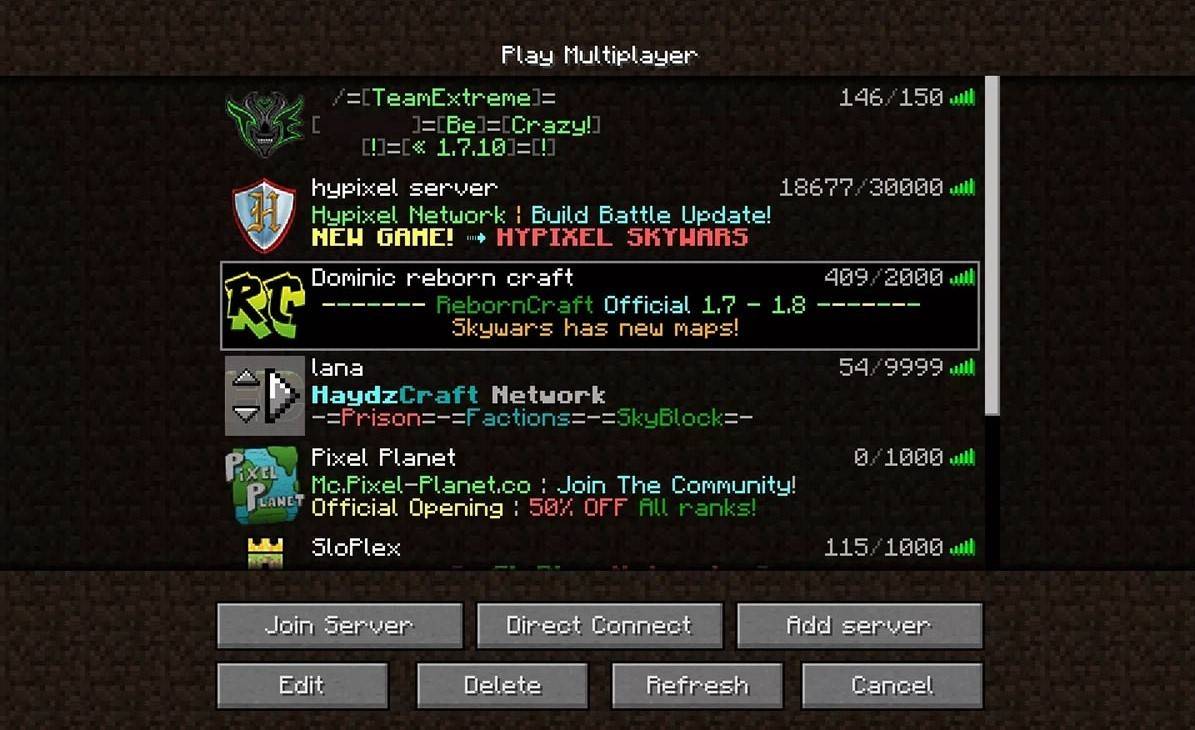 Image: aiophotoz.com
Upon your first launch, you'll be prompted to log in with your Microsoft account credentials. If you're planning a solo adventure, select "Create New World." In the world settings menu, choose between "Survival" for the classic challenge or "Creative" for unlimited resources.
For multiplayer, navigate to the "Play" section in the main menu, then to the "Servers" tab. You can join public servers or enter the IP address of a private server if you have an invitation. To play with friends, create or load a world, go into settings, and enable multiplayer.
 Image: youtube.com
On Xbox consoles (Xbox 360, Xbox One, Xbox Series X/S), download Minecraft from the Microsoft Store. Launch the game from your console's home screen and log in with your Microsoft account to sync achievements and purchases.
On PlayStation (PS3, PS4, PS5), purchase and download Minecraft through the PlayStation Store. Launch it from the home screen and log in using your Microsoft account, which is crucial for cross-platform play available on these versions.
For iOS, get Minecraft from the App Store; for Android, from Google Play. After installation, log in with your Microsoft account. The mobile version supports cross-platform play, allowing seamless gaming with other devices.
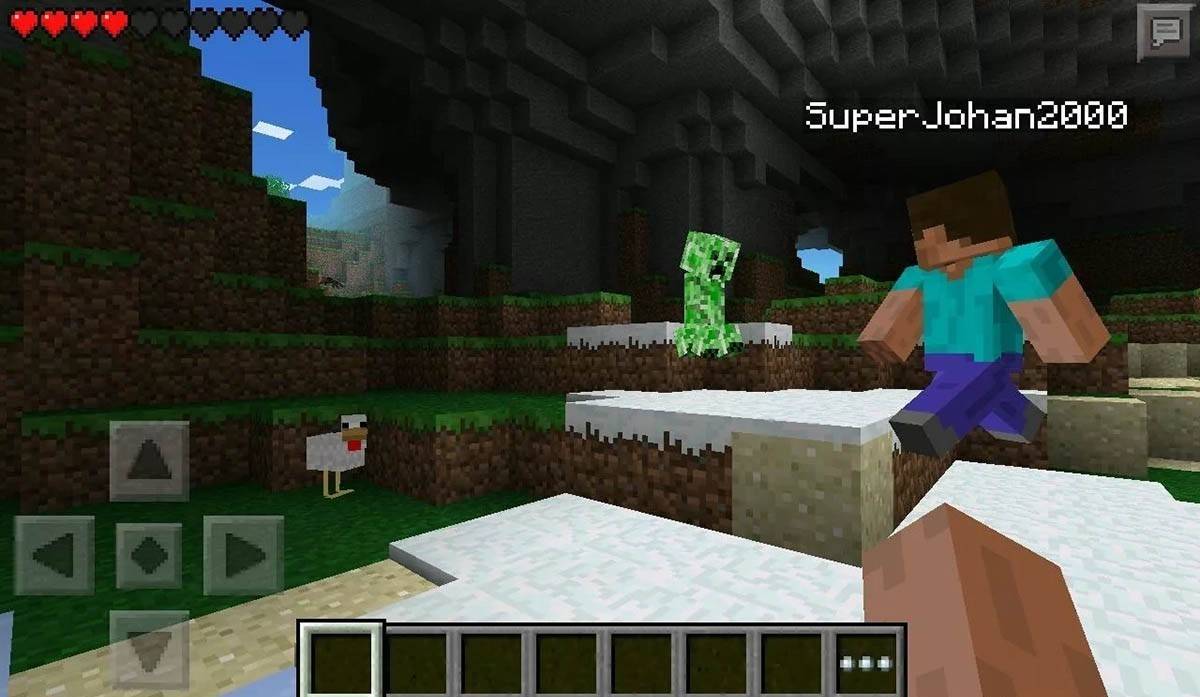 Image: storage.googleapis.com
It's worth noting that Bedrock Edition facilitates cross-platform play across all mentioned devices, enabling players to connect regardless of their platform. Java Edition, however, is restricted to PC and does not support cross-platform play.
The process of launching Minecraft varies by platform, but Bedrock Edition's cross-platform play feature ensures a cohesive multiplayer experience across devices.
Exiting the game is straightforward. On PC, press the Esc key to open the game menu and select "Save and Quit." This will take you back to the main menu, from where you can close the program entirely.
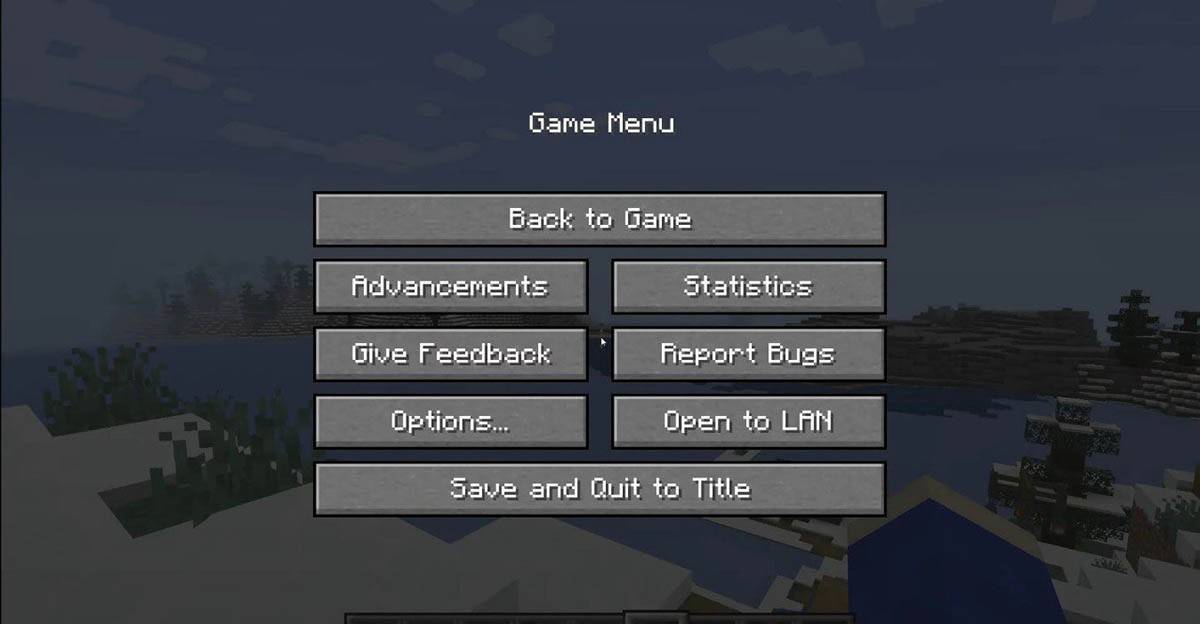 Image: tlauncher.org
On consoles, use the corresponding gamepad button to open the pause menu and choose "Save and Quit." To fully close Minecraft, navigate to the console menu via the "Home" button, highlight the game, and select the exit option.
On mobile devices, the "Save and Quit" option is accessible through the game menu. To completely close the app, exit through the device's system menu. On Android, swipe up from the bottom to access running apps and close Minecraft; on iOS, double-tap the "Home" button or swipe up to close the app.
With these basics under your belt, you're ready to dive into the blocky world of Minecraft. Enjoy exploring and creating, whether alone or with friends across various platforms. Happy gaming!
Girls Frontline 2: Exilium Global Website Goes Live, Along With Its Socials!
Marvel Rivals: Understanding Bussing and Catching It
New Game Plus in Assassin's Creed Shadows: Confirmed?
Top Skills to Prioritize for Yasuke in Assassin’s Creed Shadows
Assassin’s Creed Shadows Movements Reviewed by Two Parkour Athletes
Death Stranding 2 Release Date Unveiled in Massive Trailer
Pokemon GO Leak Teases New Adventure Effects
Amazon Music Unlimited: Free 3-Month Trial Available

Randy Pitchford Defends Borderlands 4 Comment in Statement
Mar 28,2026
Pokémon Players Now Think Another Card 'Looks Very Similar' to Fan Art, but Others Aren't Convinced This Is a Ho-Oh Plagiarism Situation
Mar 26,2026
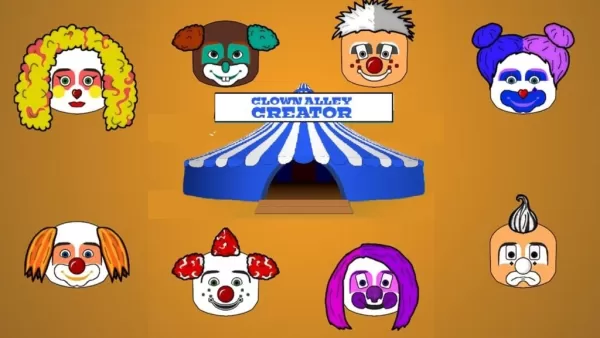
Clown Alley Creator Launches, Craft Your Character
Mar 26,2026
Nintendo Today App Debuts as Fan Content Hub
Mar 24,2026
Death Stranding 2: On the Beach Reveals New Trailer
Mar 17,2026
 Category